
How to add-on an order to an existing order?
Operating Procedures:
Main interface > Orders > Live Orders > Merchant > Checkout > Place Order
Follow this guide to add-on order:
Step 1
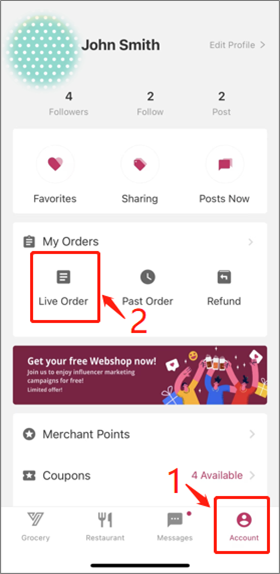
At the main interface of the APP, click “Account” and followed by “Live Order“
Step 2
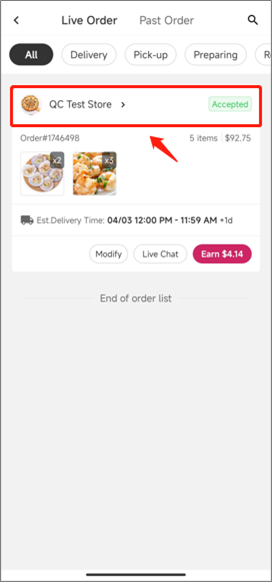
Click on the merchant’s name if you have an incomplete order with the merchant
*Order needs to be in Accepted or Preparing status
Step 3
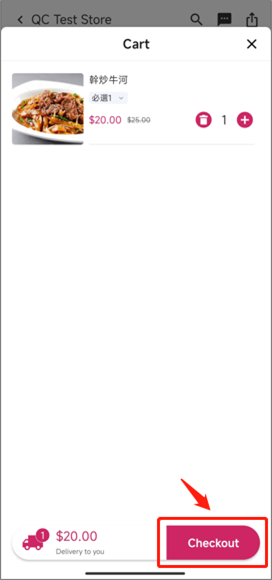
Select your item(s), then click “Checkout” to proceed
Step 4
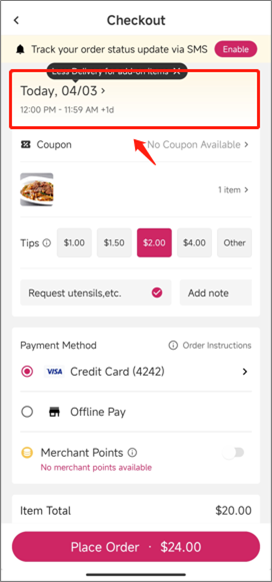
If the current order can be added to your existing order, there will be a pop-up message, and click on it
Step 5
Select the unshipped order for the item(s) to be added on
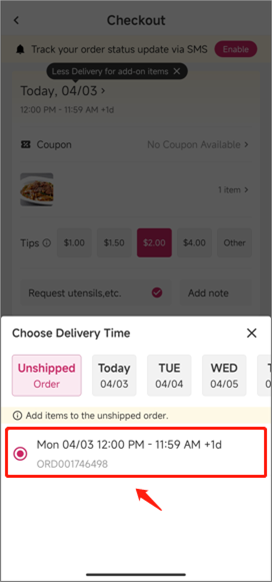
Step 6
Click “Confirm” to acknowledge the order information of the selected unshipped order
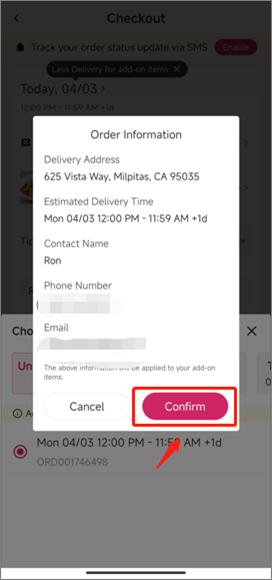
Step 7
Confirm all the details before clicking “Place Order” to proceed
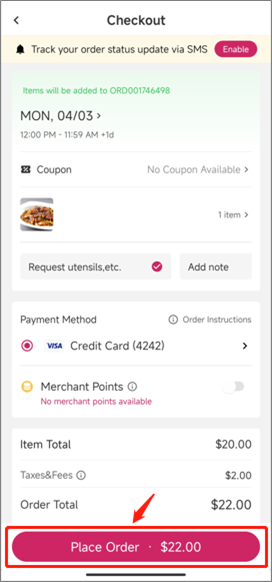
Step 8
Congratulations! You have successfully add-on to an order
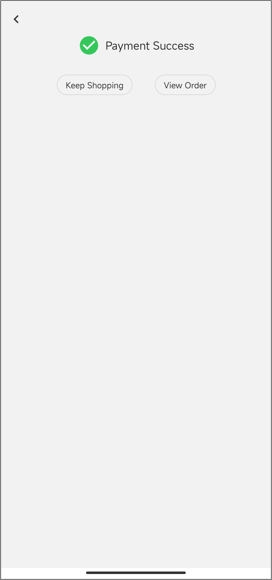
If you need further assistance, please feel free to submit your request to Customer Care Team through our Help Center and we will contact you as soon as possible.